P.S. – Your Rendering Software Is Obsolete

An article at PC Magazine.com last November talked about how real-time rendering is changing the movies, mainly in terms of how it affects the workflow and the time involved in creating animated films. Because of the advances in processor speeds and the continuing evolution of software programming, animators are beginning to be able to animate in real time. The giant rendering farms of the Far East may soon be a thing of the past.

Creating renders, at least for me, is a tedious affair that ends up eating hours of time while processing images, and renders ( pun intended ) my computer a slave to the rendering engine, useless for working on anything else.

The new wave in rendering software is for real-time execution with full motion and lighting effects as well as physical atmospheric effects like water, fog, etc.

While not cheap, there are a number of real-time, full motion options that cut the normal still-image render time from hours to seconds.

LumenRT

The least expensive option I’m aware of is LumenRT. This is a real-time rendering engine designed for use with Sketchup, but is currently being developed for use with other modeling software. Unlike the other programs I’ll discuss, there is a calculation process involved that does take more time but the advantage of this is that you can output what is called a LiveCube, which is an executable file you can send to anyone that they can navigate in and explore the model without the need for any software. Pretty neat. The downside is that once this is done, if you make any changes you need to recompute everything.

The program boast very accurate lighting and reflection effects and this affects the render speed. The company’s site advises that you may experience slower processing speeds if your model exceeds 40,000 square feet or 500,000 polys.

Normally price at $295, the program is currently on sale for $195 at their site. You can watch a promo film below, and read a review of it here.


Lumion

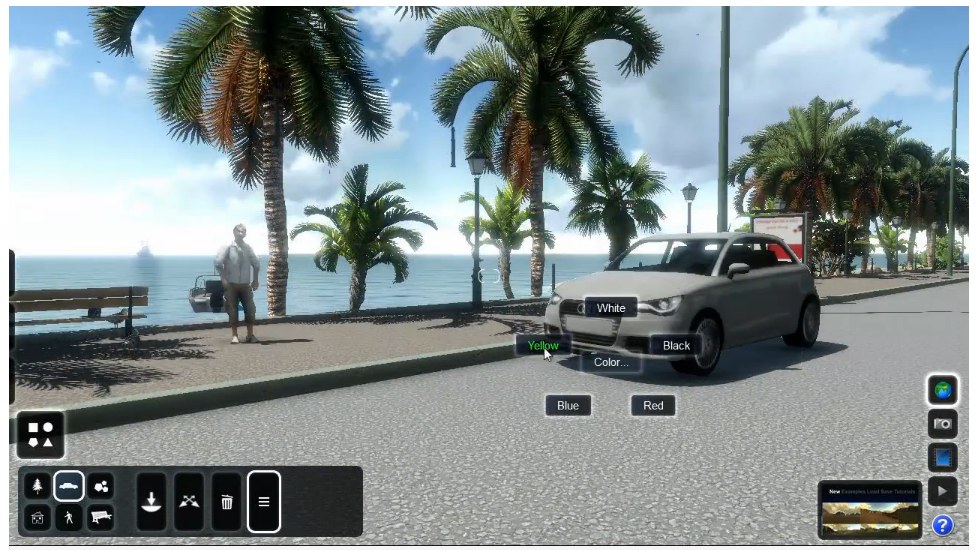
The next option is a program called Lumion, which was designed based on the object-oriented analysis approach of Quest 3D, a virtual reality program designed for 3D fly-throughs and simulations.

Lumion’s interface

Lumion is a true real-time rendering engine that can import nearly any 3D model. Instead of using ray-tracing technology like most other renderers, it uses a system more like those found in gaming systems to simulate light effects. This would seem to suggest that the specular effects and reflections are not accurate but a viewing of several sample videos of the product seems to suggest otherwise. Because of the way the program operates, objects in the background are rendered at lesser resolutions meaning it can handle models with millions of polys without bogging down.

The program is touted as having a short learning curve and is able to generate full motion renders in a fraction of the time it once took to do them in programs like Maya.

Lumion isn’t cheap by any means. The price of the basic program is about $1,900 with the pro version running about $3,700. There is a free version, which is limited and there is a trial version as well. It also runs only on the Windows operating system. Check out the amazing promo videos below and read the reviews here and here.

Lumion quick overview from Lumion on Vimeo.

Waterfall Lumion techpreview from Lumion on Vimeo.

Lumion demonstration from Lumion on Vimeo.

Twinmotion 2

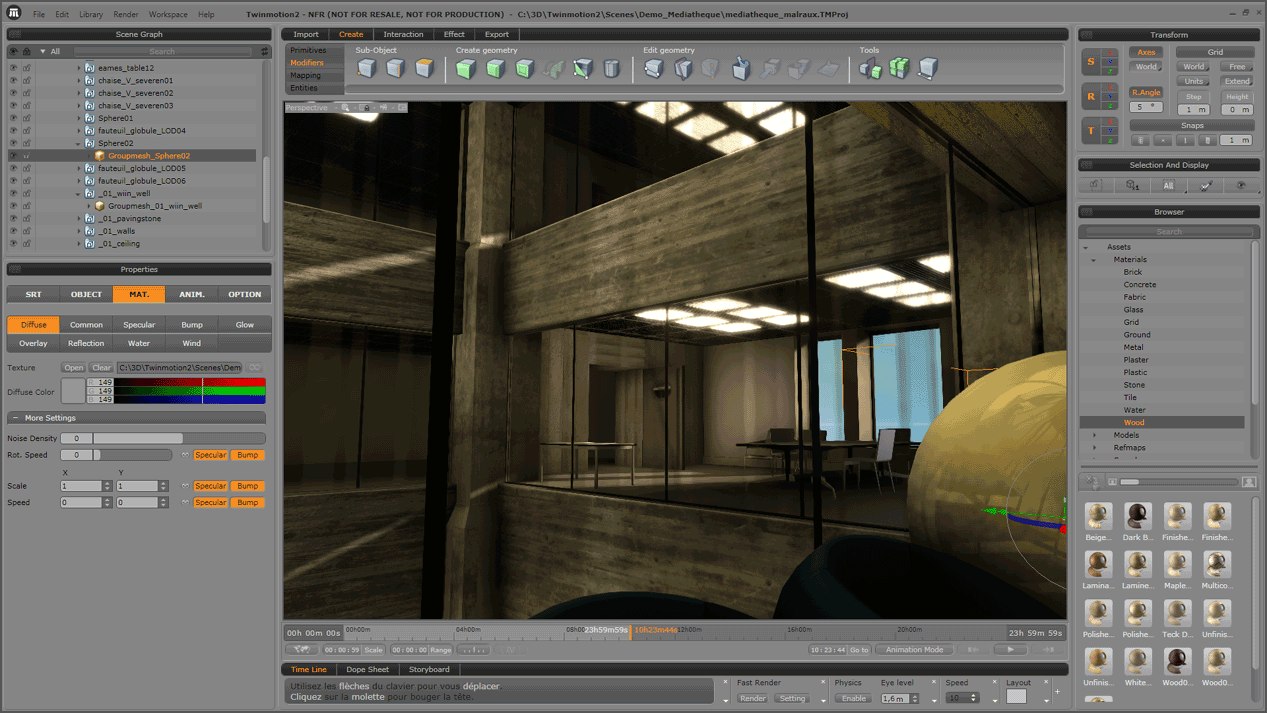
Twinmotion 2 bills itself as “the render killer”. It was developed by an architectural film as an in-house application but was made available to the public. Like Lumion it is capable of handling huge models because of its Level Of Detail technology that renders distant objects with less detail and increases the poly count as you move closer to them.

Twinmotion 2 interface

Twinmotion seems to have more accurate geo-locating controls as well as sun controls, but Lumion is constantly changing so that may no longer be the case. Twinmotion does create excellent renders as seen below in this side-by-side comparison of a render to actual film of the location.

At $2900, Twinmotion 2 is in the same range as Lumion. Plus, there is a $850 annual subscription fee, similar to Revit. It’s hardly a purchase one could take lightly.

So what does this mean for the Art Department? Do we need full-motion renders? Considering that renders are becoming more and more common at each step of the design process, creating full-motion renders that can be done in a fraction of the time of traditional renders might become the norm.

Maybe that’s not such a bad thing. Maybe they could provide a good transistion step into the pre-viz process. Or maybe they’ll bring some of the pre-viz work back into the Art Department.

What do you think?

Measuring Heights Without A Tape Measure

Here are three high-tech to no-tech ways to calculate the height of a building or tree or pole or anything else you need to know the size of but can’t determine with a tape measure.

1. Theodolite Pro

Theodolite Pro is an app for the iPhone, iPod Touch and the iPad.  Made by Hunter Research & Technology , it’s a multi-function augmented-reality app that combines a compass, GPS, digital map, zoom camera, rangefinder, and two-axis inclinometer. Theodolite overlays real time information about position, altitude, bearing, range, and inclination on the iPhone’s live camera image, like an electronic viewfinder.

At $9.99, it’s worth more than 4 times the price.
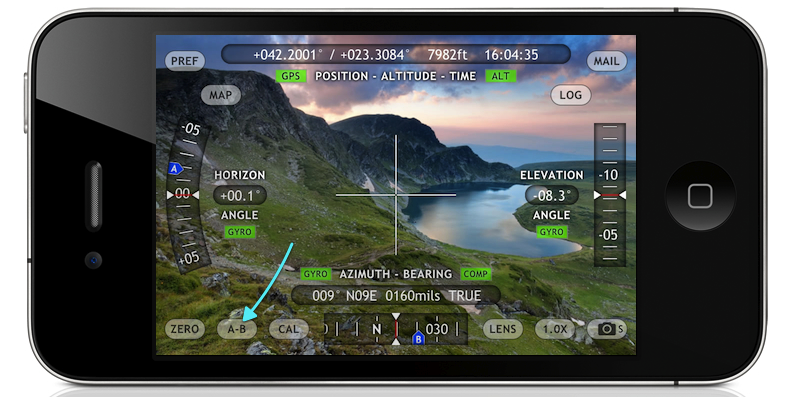
Theodolite Pro screen

The apps screen data gives you your position in either latitude and longitude or UTM units, as well as the time and date and your elevation. On each side are the horizontal and vertical indicators in tenths of a degree. The device has a one-button calibration function as well as a 2x and 4x magnification for pin-pointing a particular object. There are several options for the center crosshairs, one of them are a pair of multicolored floating boxes which merge and turn white when you are plumb in both directions.

You’ll get a much better result if you mount the device on a tripod. For an iPhone, the method I like is with a Snap Mount. It has 1/4″ female sockets for mounting in either a vertical or horizontal direction.
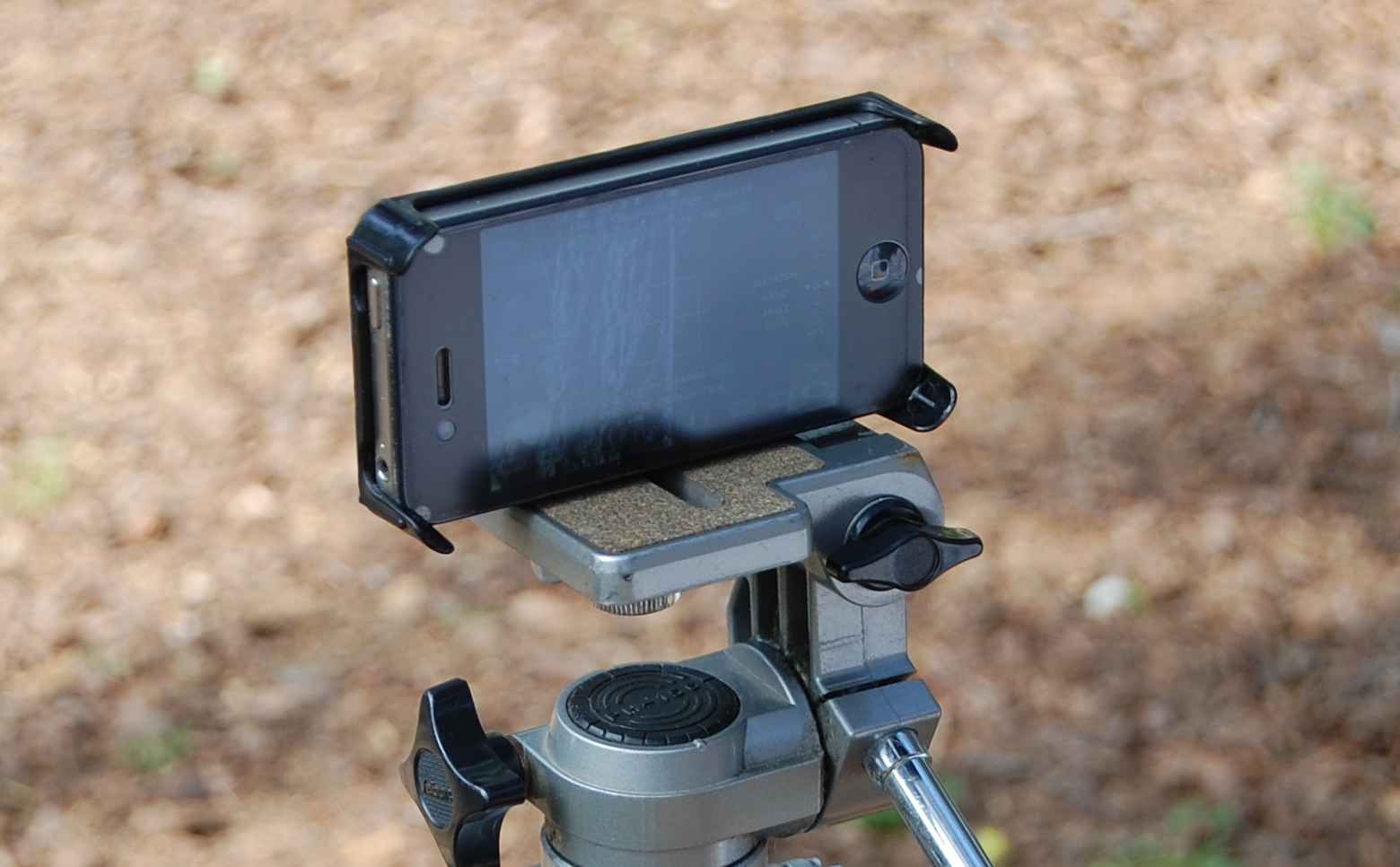
Snap Mount device for the iPhone 4

Once the phone is mounted, you point the center at the top of the object and push the “A” buttton to take a reading. Then tilt the device toward the bottom of the object and take  the “B” reading.
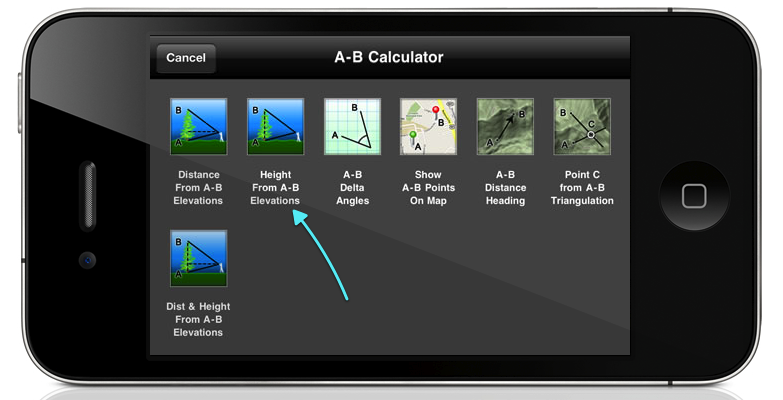
Then the app will ask you for your distance to the object. The more accurate your answer the more accurate the result will be. So, you’ll either have to pace off your position or measure the distance with a reel tape or laser measure device.

If this isn’t possible, you can use the option to determine the distance and height, although this will probably not be as accurate.

There is also an optical rangefinder built into the view screen that works by way of a series of concentric circles in either size factors or mils, that you can use to determine distance if you already know the size of an object in the foreground.
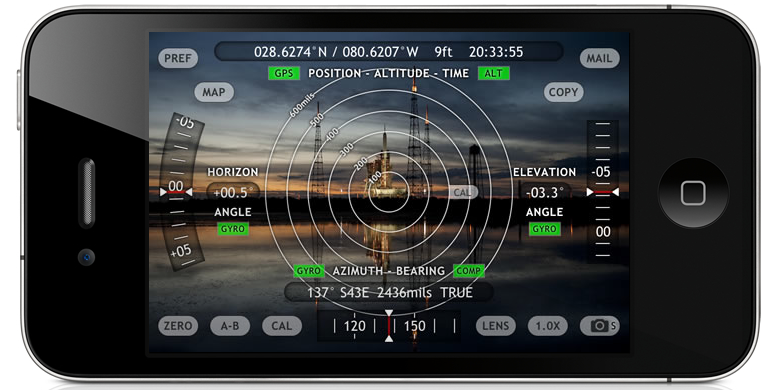
optical rangefinder rings

This app has been a best-selling navigational app for some time and has become a very useful tool in many different fields. You’ll find it’s very useful when doing field surveys and it’s certainly a lot cheaper than an analog theodolite.

2.  Clinometer

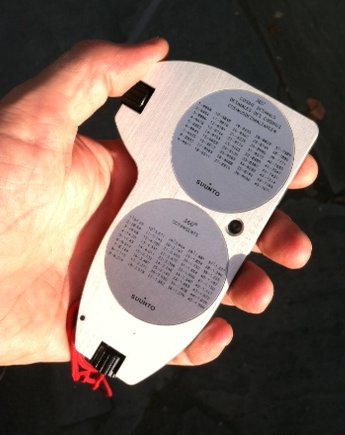
A clinometer, or inclinometer is a device which measures the angle of slope and uses basic trigonometry for estimating height. My clinometer is a combination clinometer and optical compass made by the Finnish company Suunto and is called the Suunto Tandem. Like the iPhone, you’ll get better results if it’s mounted to a tripod and the Suunto has a 1/4″ socket for this.
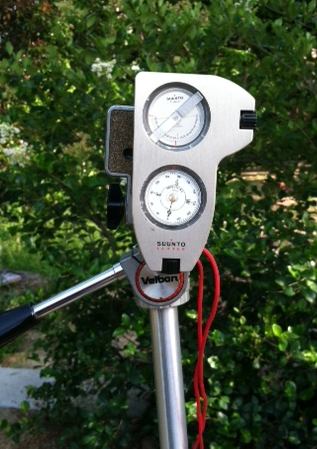
The Suunto Tandem

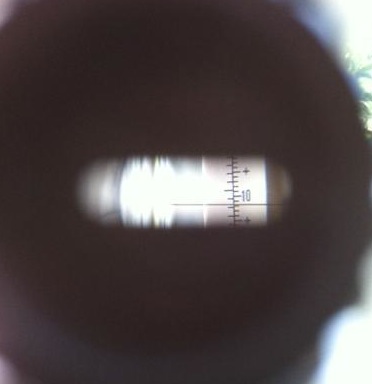
You look through the peep sight, leaving both eyes open. The graduated scale is superimposed over the object you’re centered on and you can read the results as either a percentage of slope or degrees of elevation.
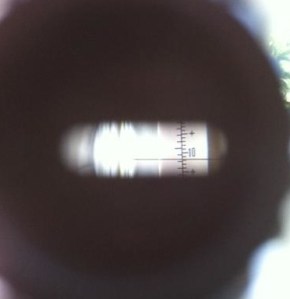
You sight the top of the object in the device and read out the angle. Then you refer to the cosine table on the back of the device. From there it’s just a simple trig calculation. Adding the height from the ground to the center of the clinometer will give you a very close figure for the objects height. Like before you need to know your distance from the object you’re measuring, so it would be a good idea to determine your average stride to have a semi-accurate way of pacing off distance when surveying.

The back of the Tandem has tables of cosines and cotangents printed on it to make calculations easy.
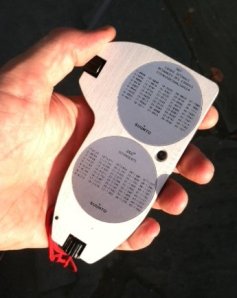
The list price of the Tandem isn’t cheap, but I’ve seen them go for $20 on Ebay, so you should check there before you buy a new one. The results may not be quite as accurate as with the Theodolite app, but you’ll never have to worry about a dead battery and the device will still work perfectly 50 years from now. Like the Theodolite app, it’s good for shooting grades and taking elevation surveys as well.

A handy addition to both the above devices is to get a Keson Pocket Rod. It’s a collapsable surveyors stadia that rolls into it’s case. It has black and white graduated scales on one side and red and white on the other. It’s a great tool to have to put in location survey photographs as well for accurately scaling details from photos when you don’t have time to measure everything at a location. They come in both Imperial and metric units.
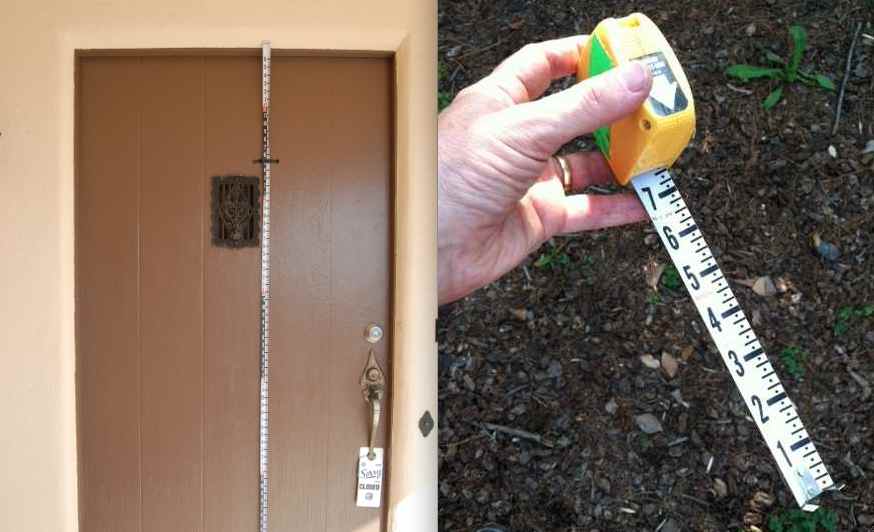
Keson Pocket Rod

3.  Biltmore Stick

This is the cheapest and easiest method of determining height but it’s also the least accurate. This is a trick I learned from my Boy Scout days. It’s based on the Biltmore Cruiser stick which is a way of determining the heights and widths of trees and how much lumber they would yield. The Biltmore Stick ( sometimes called a hypsometer ) gets it’s name from the famed Biltmore Estate in Asheville, North Carolina and was invented in the 1890’s by a German forester named Carl Schenk who was the master forester at the estate.

A real Biltmore stick has graduated markings that take into account for foreshortening but there’s a less expensive method. We were taught to use a yard stick (not very compact) or a 6 foot folding rule, which is a little wobbly to hold vertically. I like to use a Four Fold rule which is the original folding rule from the mid 19th century. They were sometimes called Blindman’s rules because the numbers are large and easy to read, making them perfect for this use. Garrett Wade carries a good reproduction of them. They fold down to just 9 inches long and fit nicely in a survey bag.

The way to use this one is to pace off 25 feet from the tree, building, etc. Turn and face it, holding the rule at arm’s length. 25 inches from your eye is the ideal distance. hold the rule so that the bottom of it lines up with the bottom of the object, like so:
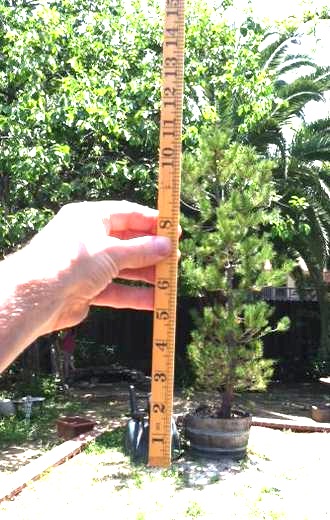
using the Four Fold rule as a Biltmore stick

Read off the number than lines up with the top of the object and that will give you the height in feet. If the object is above the 25 inch mark, back up another 25 feet and multiply the results by 2. If it is still above the 25 inch mark, back up to 75 feet away and multiply the results by 3, and so on.

This method won’t necessarily give you a really accurate height, but it will give you a number that will be pretty close, say within 3% to 4% of the true measurement, providing you are very close in the distance increment and the rule is very close to 25 inches from your eye.
 

Sculpting Tools For Sketchup

Most people think of Sketchup as a program that just draws boxes. As a poly-modeler it was always handicapped when it came to modeling compound curved surfaces and even with the built-in Sandbox tools, drawing terrain was never truly easy.

Now there are two different plugins that make not only terrain construction but organic and vehicle construction possible without having the urge to jump out the nearest window. I use both regularly and because they each have different attributes, I think their capabilities really complement each other when you are constructing complex shapes.

Artisan

The first is a plugin called Artisan which is a great solution for creating organic shapes. Created by Dale Martens, who has produced numerous other free plugins including Subdivide & Smooth, has created a set of sculpting tools that work very much like the sculpting tools in Maya and are incredibly easy to learn and use. The site has nice tutorial videos as well as a nice gallery of others work using the plugin. You have a series of settings which allows to to adjust the pressure of the brush, either positive or negative, and after setting the width of the ‘brush’, you drag it over the area to create the sculpted surface. The demo video below will give you an idea of the process.

One of the tools that alone is worth the $39 cost, is a poly-reducer which is a huge help when you import models from a NERB software package like Rhino or Maya. The tool allows you to select how much you want to reduce the poly count of a model to get it down to the size you need. You can also reverse the process and take a low-poly model and increase the detail.

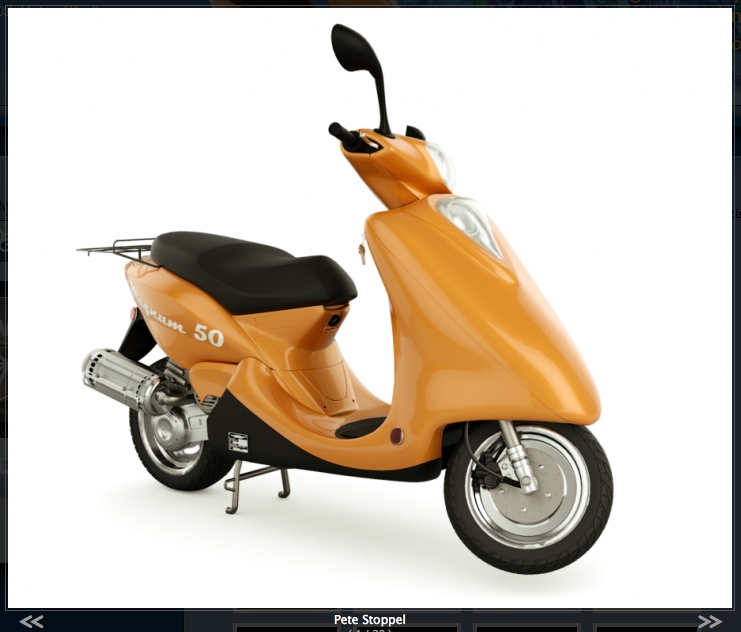
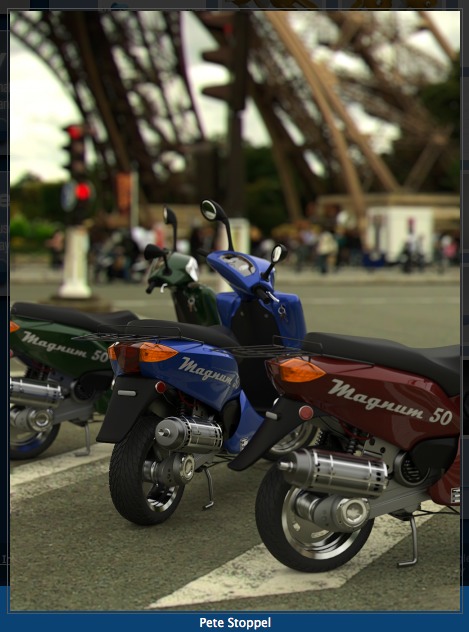
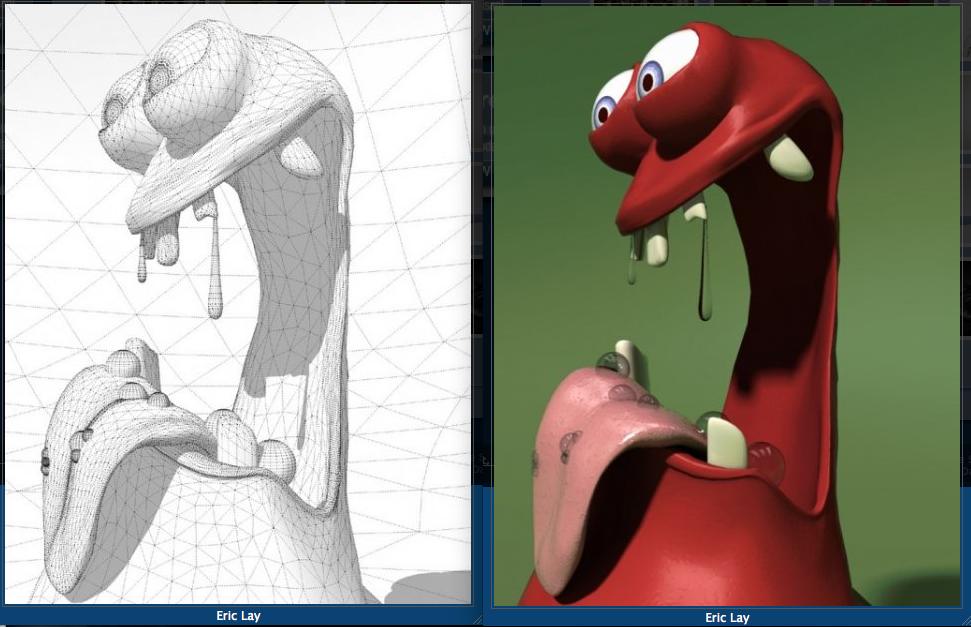
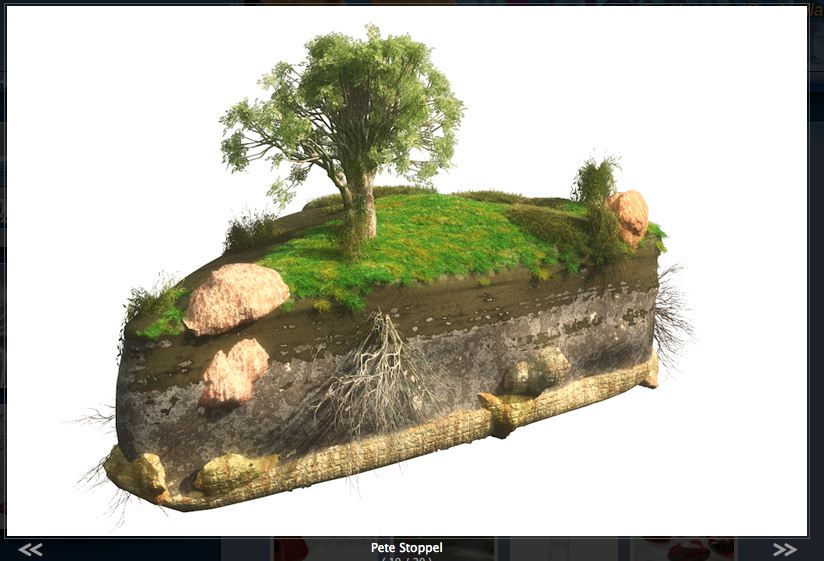
I consider this plugin to be an absolute must for people who want to be able to build anything besides flat walls in Sketchup. Here are some examples of Sketchup models created using Artisan:

scooter by Pete Stoppel using Artisan

Motorbikes by Pete Stoppel

creature by Erik Lay

terrain by Pete Stoppel

Vertex Tools

The other plugin is called Vertex ToolsThis program has tools which work differently than Artisan but has some advantages over it in the way the selection tools work. Designed by Thom Thomassen, a modelmaker from Norway who has also designed an incredible number of other useful free plugins, has designed a set of tools that are what the Sandbox Tools aspire to be.  At $20 it, like Artisan, is a real bargain. The video below will give you a quick overview.

The selection tools allow you to set how the tool affects the surrounding polys with either a linear or cosine fall-off. This one is really a must when you are creating terrain.

At a total cost of $59 dollars, these plugins will give you a huge boost in your modeling capabilities. If you use Sketchup, they should be your next purchase. You won’t be sorry.

Would you like your metrics hard or soft?

Our team is getting smaller and smaller. The Imperial scale team, that is. Right now only the U.S. and Burma still use the Imperial system of measure. Even the British and Canadians have abandoned the system for metric units of measure.  Most countries use a system known as “S.I.” or, System International. Dimensions on drawings are expressed as millimeters, usually without a suffix ( mm ) after them.

With more and more films being made abroad it’s becoming more common for set designers and art directors to have to create construction documents that will be built out of the country. The easiest method is simply to draw in metric from the start and avoid some inevitably strange conversion numbers. Two other methods are the “soft” and “hard” conversions.

In soft metric, you draw and dimension in Imperial and then also give the equivalent metric measurement rounded to the nearest millimeter. In hard metric you dimension in Imperial and then covert to “hard” or non-rounded numbers, meaning you’re going to end up with numbers in tenths of millimeters, which is fine if you’re drawing machined parts. Since a millimeter is less than 1/32″ in length, you won’t be very popular among the people building from your drawings.

Drawing in metric straight from the start is the better way to go once you have some basic metric visualization skills. Here’s a quick list of common sizes converted to soft metric:

1″ = 25 mm

1′-0″ = 305 mm

6′ = 1829 mm

10′ = 3048 mm

Typical door height –  2033 mm  ( 6′-8″ )

Table height – 762 mm  ( 30″ )

Counter height – 915 mm  ( 36″ )

Common Drawing Scales

Here’s a list of metric scales and their closest Imperial scale equivalent:

1:1 (Full Size)

1:2 (Half Size)

1:5  (3″= 1′-0″)

1:10  (1 1/2″=1′-0″)

1:20  (3/4″=1′-0″)

1:25  (1/2″=1′-0″)

1:50  (1/4″=1′-0″)  actual equivalent – 1″= 4.17′

1:100  (1/8″=1′-0″)  actual equivalent – 1″= 8.33′

1:200  (1/16″=1′-0″)  actual equivalent – 1″ = 16.66′

1:250  (1″=20′-0″)

1:500  (1″=40′-0″)

1:1000  (1″=80′-0″)

Conversion Scales

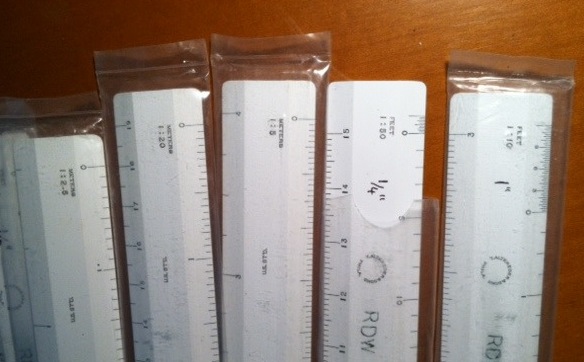
There used to be a company in Philadelphia called T. Alteneder & Sons which made custom drawing scales. I ordered a metric / imperial set nearly 14 years ago and they’re very handy. If you can get your hands on a set, buy them.

Since there doesn’t seem to a source to buy them anymore, I made up a paper scale set for 1/4″ / 1:50 that you can print out and make yourself. You’ll need a 1 1/2″ wide by 17″ long piece of matt board or thin basswood. Download and print out the PDF from the link below on 11 x 17 paper. Be sure to print it at 100% and make sure the “zoom to fit” box is unchecked. Check for print accuracy using the “Imperial” scale. It should measure a true  1/4″ to the foot. You’ll notice that the foot increments on the blue “Metric” scale measure slightly less that 1/4″ so don’t be thrown off by them. Carefully cut out the scales and mount on either side of the board.

When working with a 1/4″ drawing, use the side with the yellow box marked “Imperial”. The opposite edge of the scale will read out equivalent metric lengths. Use the other side when working with 1:50 metric drawings and the ‘feet’ scale will give you the equivalent distance in imperial units.

Metric_Imperial_ConversionScales


Lens Focal Length Comparison Chart

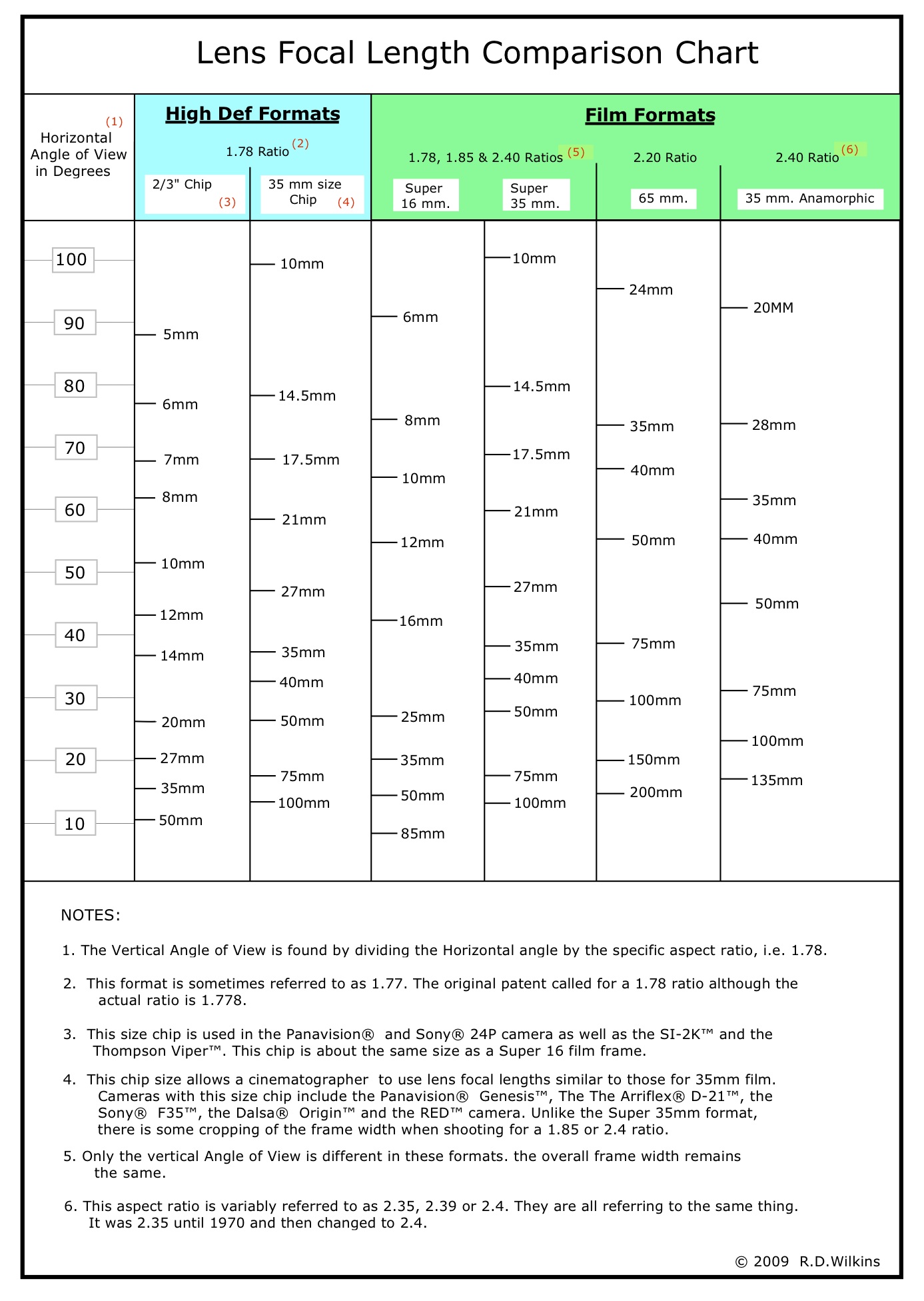
I created this chart last year for an article in September’s Perspective Magazine. Since then I’ve been asked for it several times and decided I should just post it where it’s easily accessible.

Using a straightedge, his chart will allow you to find the comparable focal lengths of lenses available in many of the popular digital sensor sizes as well as the typical film formats. You can download the PDF by clicking the link below.

Lens Focal Length Comparison Chart